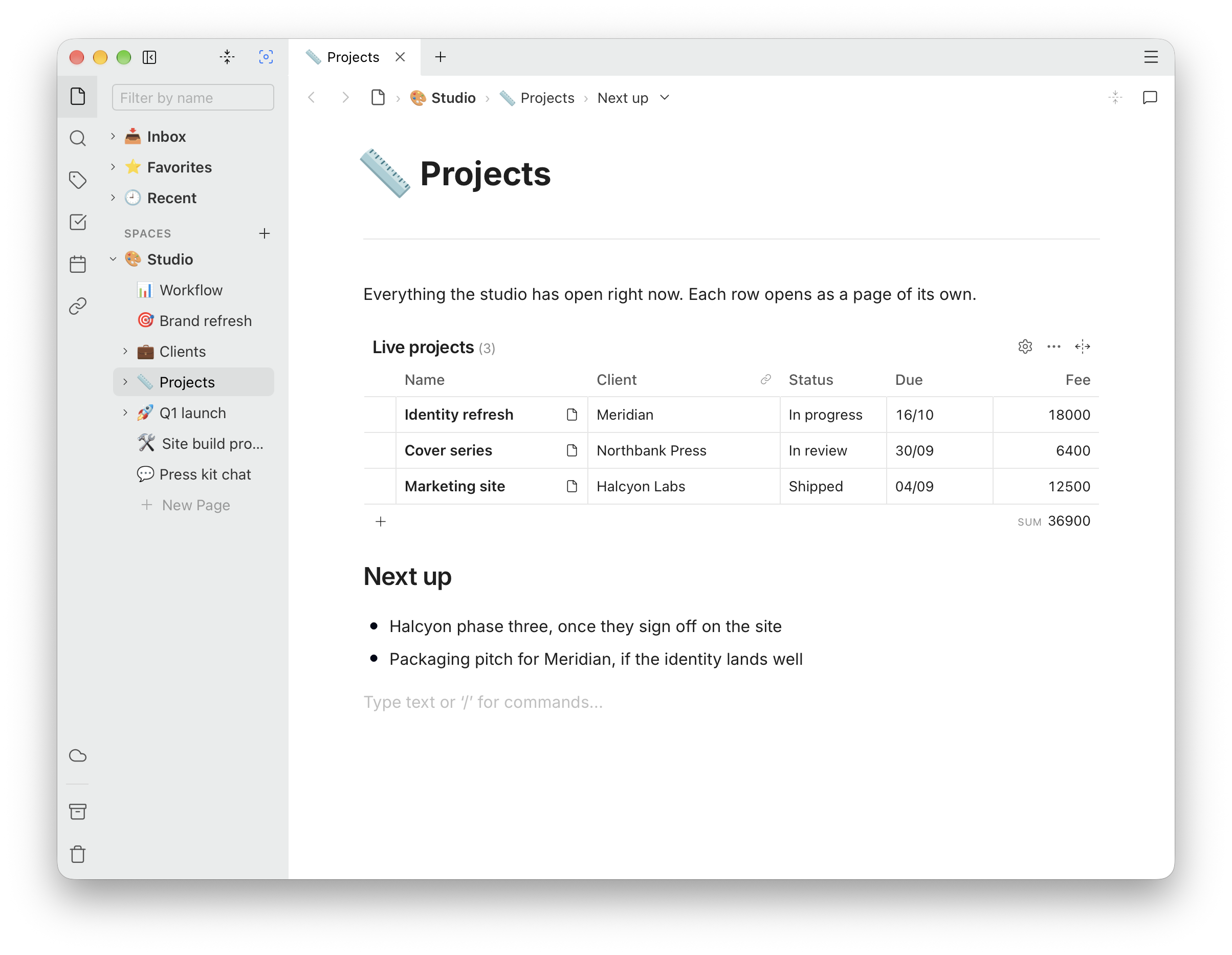
Making one
Type /Database in a page. You get a table named after the
page, with two text columns, Name and Notes, and two
empty rows to start from.
The name and the number of rows are shown above the table. Every table in a Space has its own name — it is how other tables find it to link to — so a second one with the same name gets a number added.
Columns
Click Edit columns, the gear above the table, to open Edit table. There you can rename the table, and for each column set:
- its name — any name not starting with
_, which is reserved; - its type — see below;
- its width — XS, SM, MD or LG, or - to hide the column;
- a footer — the Σ button, for totals.
Add column is at the bottom of the list, and the bin removes one. Drag a column's heading in the table to move it.
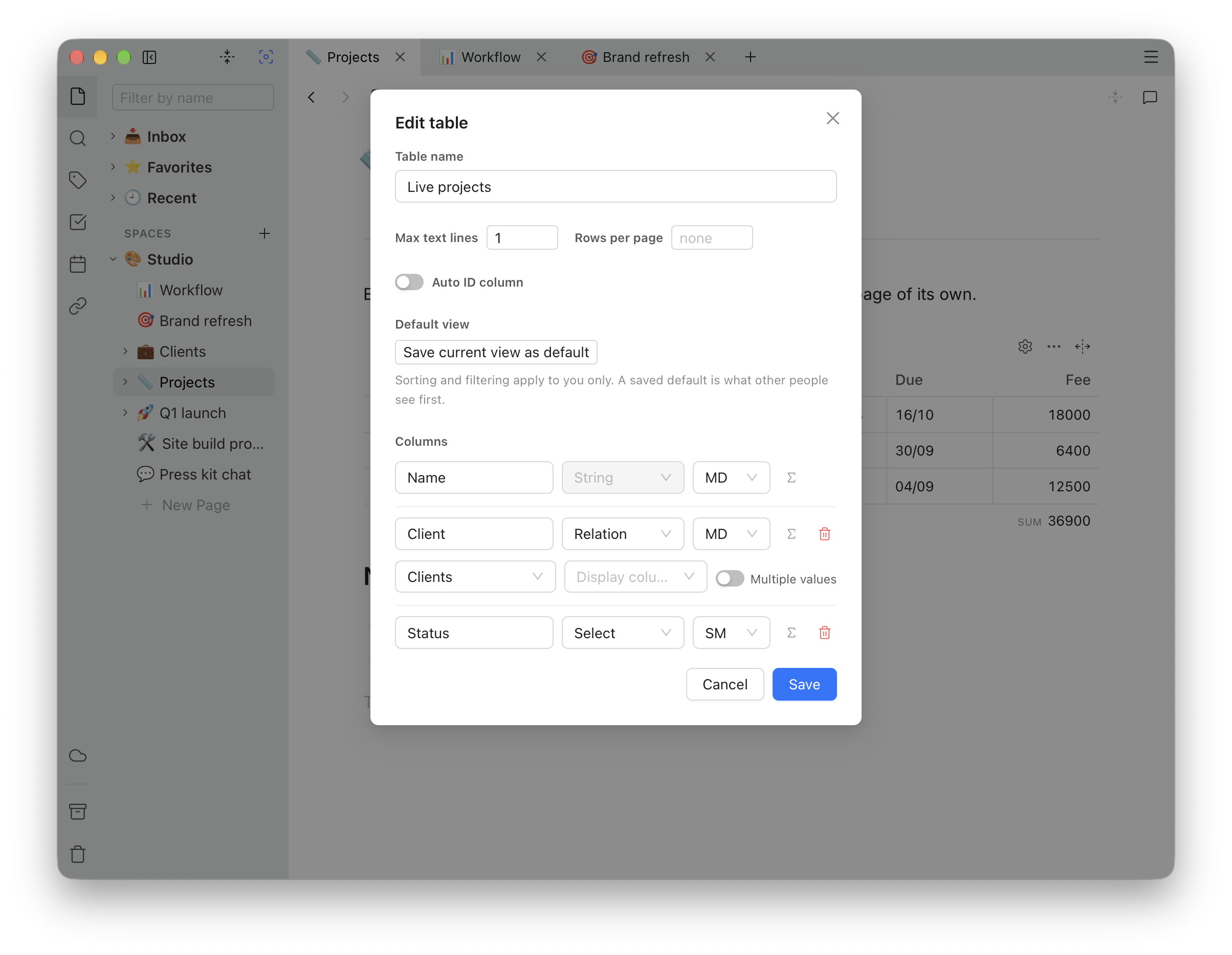
The first column is special: it is always text, it cannot be removed, and what you type in it is the title of the row's page.
The same dialog has three settings for the table as a whole:
- Max text lines — how many lines of a long text cell to show before cutting it short.
- Rows per page — split a long table into pages you step through.
- Auto ID column — number the rows
automatically, with a prefix if you like, as in
TASK-1. Numbers are never reused.
Column types
| Type | Holds |
|---|---|
| String | Text, with bold, italic, links, lists and inline math. Type / in the cell for symbols, emoji and links to pages. |
| Number | A number. The format button shows it with all digits, 0 to 4 decimals, or in scientific notation — only the display changes, never the value. |
| Date | A day, picked from a calendar. |
| Date & Time | A day and a time. |
| Month | A month of a year. |
| Week | A week of a year, starting on Monday. |
| Time | A time of day. |
| Checkbox | Yes or no. |
| Select | One choice from a list you set up — or several, with Multiple values switched on. Type the options in the dialog, pressing Enter after each. |
| Relation | Links to rows of another table in the same Space. See Linking tables. |
| Media | Images, audio and video: uploaded, dragged in, added by web address, or picked from files already in the Space. |
Click a thumbnail in a Media cell to see it larger, under the row, and step through the rest with the arrow keys.
Rows
+ under the table, Add row, adds one at the end and puts you in its first cell. Drag a row by the handle at its left to move it — possible while the table is not sorted.
Tick the boxes at the left of some rows to select them. The + becomes a bin that deletes them, row pages included. With several selected, a value you type in one of them is copied to all the others — a quick way to set the same status on ten tasks.
Undo works on everything you do to a table.
Row pages
The button in each row's first cell, Create row page, gives the row a page of its own. It opens right under the row, with the whole editor; use Open in full tab for more room, and Esc to close it.
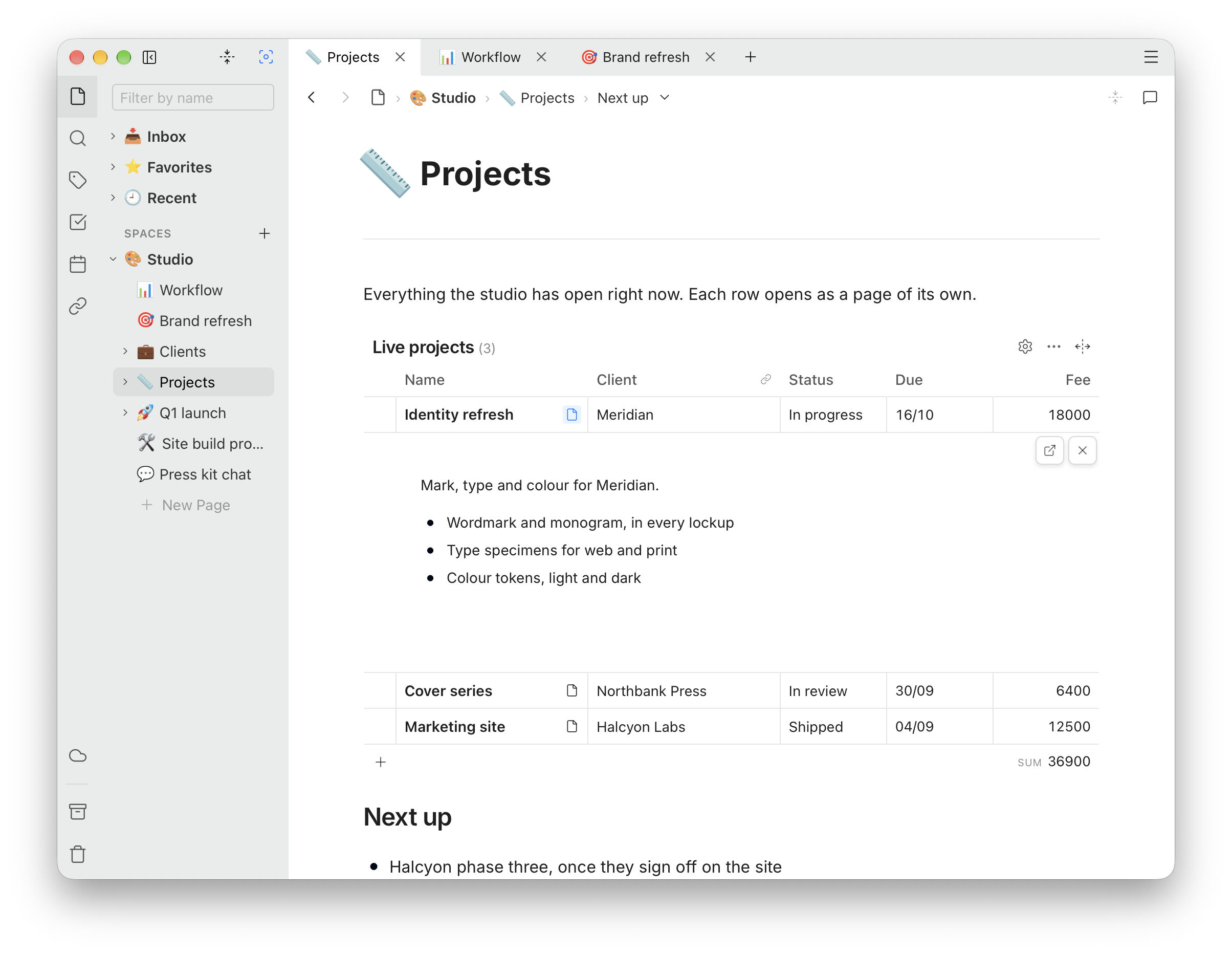
The page is titled with the row's first cell and follows it when that changes. Row pages are kept in a folder named after the table in the sidebar, and search finds each of them on its own.
A row page left empty is removed when you close it. Some blocks — sub-pages, page links, bookmarks and video embeds — cannot be added while it is open under the row; open it in a full tab for those.
Linking tables
A Relation column links each row to rows of another table — tasks to the project they belong to, books to their authors. In Edit table, choose the target table and which of its columns to show, and switch on Multiple values to allow more than one link per row. A table can link to itself, marked (self), though a row cannot link to itself.
When a linked row has a page, the cell has a button to open it. Links to rows that are deleted disappear on their own.
Sorting and filtering
Click a column's heading to sort by it; sort by more than one column by clicking more than one. Each heading also has a filter suited to its type:
- text: rows containing the words you type;
- numbers, dates and times: a range, From and To;
- Select and Relation: values to Include or Exclude;
- Checkbox: Yes or No;
- Media: whether a row has any.
The row count above the table shows how many rows match out of the total. A row added while filters are on is filled in to match them, so it does not vanish as you type.
Sorting and filtering are yours alone, and nobody else sees them. To give a table a view everyone starts from, set it up and choose Save current view as default in Edit table.
⌘F or Ctrl+F finds words in the rows you can see. Replace does not change text inside tables.
Totals
The Σ button next to a column in Edit table adds a footer under it: Sum, Average, Minimum, Maximum or a count for a number column, the number checked for a checkbox, and a count of filled cells for anything else. Totals cover the rows that match your filters, on every page of the table.
Getting data out
The … menu above the table has Copy CSV and Download CSV, for a spreadsheet. Every column goes in, hidden ones included.
Source mode, in the same menu, shows the table as text: its
settings, a --- line, and the rows as CSV. It is read-only. To
move a whole table, use Copy block in the block's menu: pasted into
another page, or another Space, it becomes the table again.
In the HTML copy and in exports, a database is an ordinary HTML table, with relations as links to the rows' pages. Databases imported from Notion arrive as tables.