What a Space is
A Space is the top level of the Pages panel. It holds pages and folders, nested as deep as you like, and the databases, images and files in them. Have as many as you keep contexts: one for each client, one for a side project, one for home.
A Space keeps its contents together. Search and Tags group what they find by Space. A table links to rows of other tables in the same Space, and exporting works one Space at a time. With sync on, each Space is encrypted in the server with its own key.
📥 Inbox is a Space too. It is where quick notes land. 🕘 Recent and ⭐ Favorites, below it, are not Spaces: they list pages that live in your other Spaces. 🧩 Templates, after them, holds the pages you start new ones from (Templates); it starts hidden in Focus. These four sit above the Spaces caption, and none of them can be renamed or deleted.
Making and managing Spaces
To make a Space, click the + on the Spaces caption in the sidebar, or choose New Space… from the app menu or the Focus menu (on a Mac, it is also in the File menu). Give it a name and an icon, then click Create.
Hover over a Space to see its buttons. The + button adds a page or a folder. The … menu has Rename, Archive and Move to Trash. To move a page to another Space, drag it there. To export a Space, choose Export Space… from the app menu.
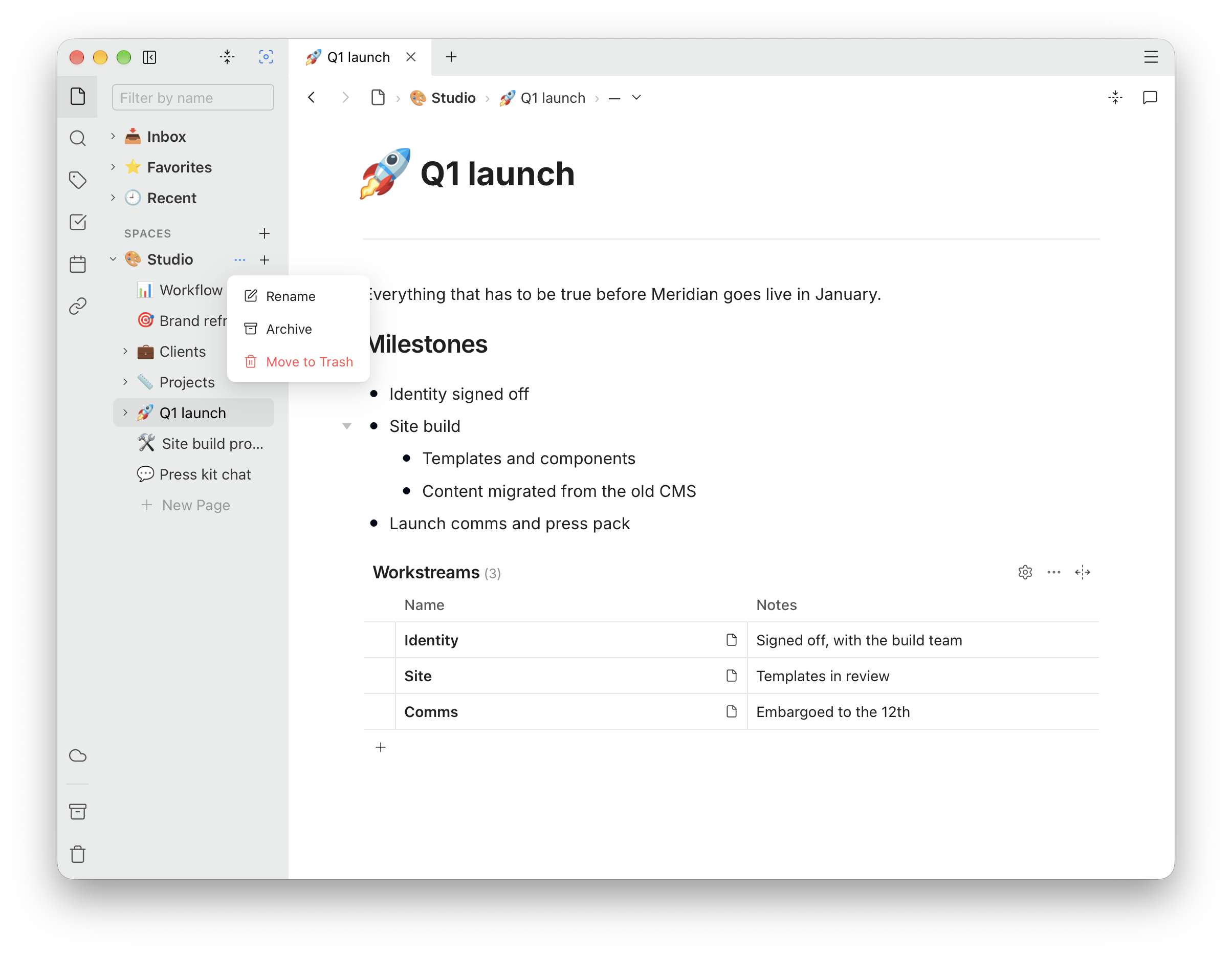
Focus: choosing active Spaces
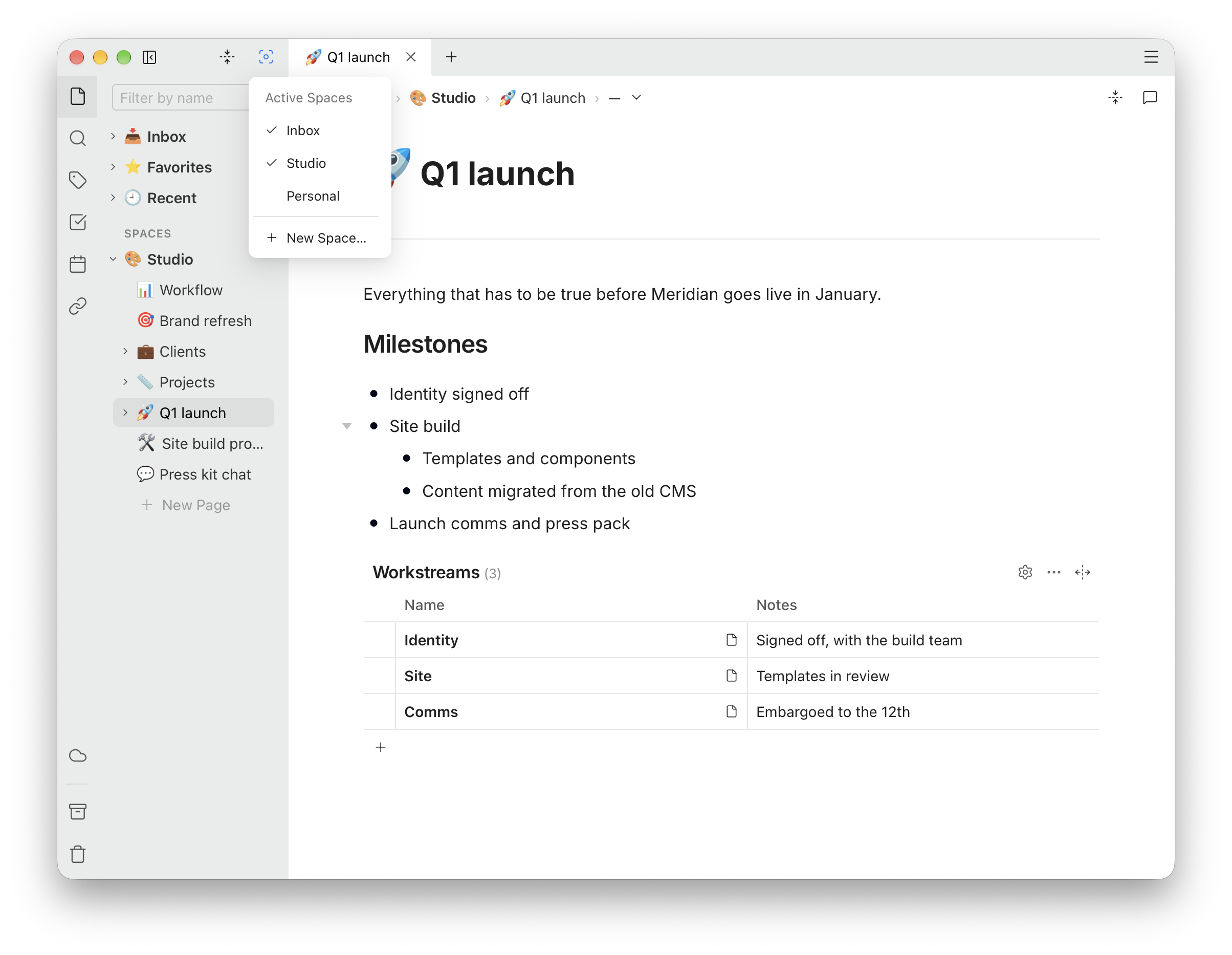
You don’t need every Space in front of you all the time. The Focus button, at the top right of the sidebar beside Fold all, opens a menu that lists every Space under Active Spaces, with a tick beside each one that is shown. The menu stays open while you click, so you can change several at once.
- To hide a Space, open Focus and click it. Its tick goes away.
- To show it again, click it once more.
- To see everything, tick every Space again.
While any Space is hidden, the Focus button turns blue, and its tooltip reads Focus: some spaces hidden — except Templates, which starts hidden and leaves the button as it is until you change something. The app always keeps at least one Space shown.
A hidden Space is gone from:
- the Pages panel, along with its pages in Favorites and Recent;
- Search, and the page picker in a new tab;
- the Tags, Tasks, Calendar and Backlinks panels;
- the menus for linking to a page and for mentioning one.
A link to one of its pages still shows that page's title, which is in your own text, but does not open it straight away. The app asks first: a click on Pitch notes, in a hidden Personal Space, asks whether to Show Personal, which shows the Space again and opens the page, or cancel. So a click on an old link never puts a hidden Space on the screen by itself.
Hiding a Space changes nothing in it. It keeps syncing, and your backups and the HTML copy still include it. Focus only changes what this window shows you.
Your choice is saved on this computer and does not sync, so each device can show its own set: a work laptop that shows only work, and a home computer that shows everything.
Three things you do on this computer show a Space again without a tick: a Space you make or import appears straight away, and the Inbox does when you make a quick note. Nothing that arrives by sync does: a page added on another device goes into its Space here, and the Space stays hidden until you tick it.
Before you share your screen
Focus is the fastest way to make sure a call, a demo or a recording shows only what you meant to show. Before you start sharing:
- Open Focus and untick every Space that should stay private. Keep ticked only the one you will be presenting from.
- Close any tab from a Space you hid. Hiding a Space does not close its pages that are already open. Right-click the tab you want to keep and choose Close Others.
- Look at the Focus button. If it is blue, something is hidden, and you can tell at a glance that Focus is doing its job.
When the call ends, open Focus and tick your Spaces again. Nothing has moved while they were hidden.
Focus decides what the app shows. It is not a lock: anyone who can use your computer can tick a Space back on. To keep something away from other people who use the same machine, give each person their own user account on the computer.
Hide, archive or trash
There are three ways to get a Space out of the way:
- Hiding it with Focus is for a while: for an afternoon of concentration, or for the length of a call. You undo it with one click, and only the computer you hid it on is affected.
- Archiving it is for a Space you are done with but want to keep. It leaves the tree and search on every device, and Unarchive in the Archive panel brings it back.
- Moving it to the Trash is the step before deleting it. See Archive and Trash.