The slash menu
Type / anywhere to insert a block, then keep typing to narrow the
list — /call finds the callouts, /tab the
table. Matching is forgiving, so a rough spelling usually works.
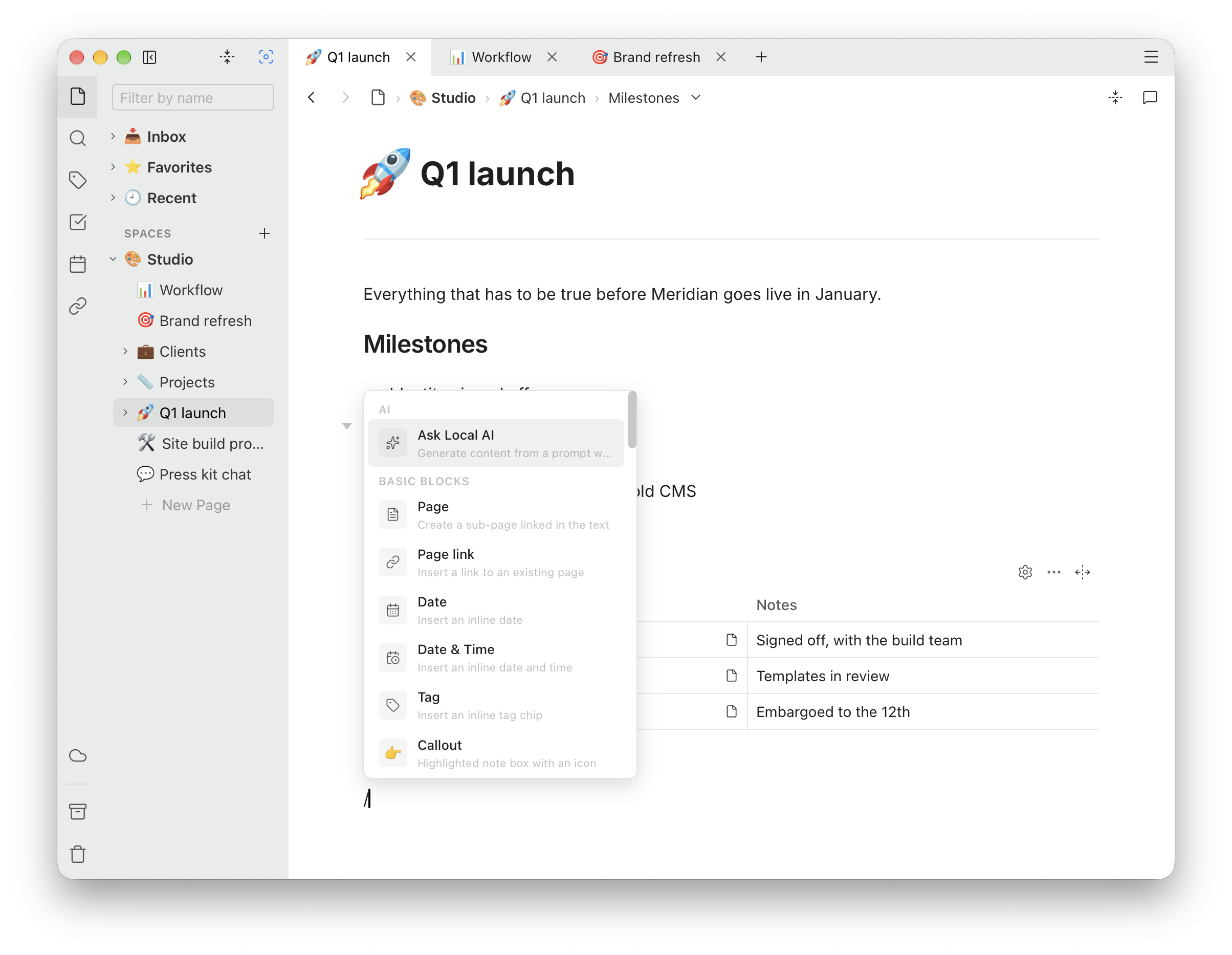
| Group | What is in it |
|---|---|
| AI | Ask Local AI, on a Mac that has it — see Local AI |
| Basic blocks | Page, Page link, Date, Date & Time, Tag, Callout (plain, Info, Warning, Error, Success, Tip), Text, Heading 1–4, Quote, Code block, Divider |
| Lists | Bullet list, Numbered list, To-do list |
| Data | Database — a table of typed columns |
| Media | Image, Video, Audio, File attachment, Bookmark, Diagram, and embeds from YouTube, Vimeo, Loom, SoundCloud and others |
| Layout | 2 columns, 3 columns |
| Advanced | Table, Math block, Inline math, Mermaid diagram, Chart.js, Emoji, Symbol |
Page makes a new page inside the current one; Page link links to one that already exists. Diagram is a draw.io diagram, edited in a tab of its own.
On a Mac with Apple Intelligence, an AI group at the top adds Ask Local AI. It runs on your machine, only when you ask; Local AI has the rest.
Markdown shortcuts
Type these at the start of an empty line and they become the block as you press the space:
| Type | To get |
|---|---|
| # ## ### #### | Heading 1 to 4 |
| - or * | Bullet list |
| 1. | Numbered list |
| [ ], [], or [x] | To-do item, open or done |
| > | Quote |
| ``` | Code block — add a language straight after, as in ```js |
And these inside a line:
| Type | To get |
|---|---|
| **bold** | Bold |
| *italic* | Italic |
| ~~struck~~ | Strikethrough |
| `code` | Inline code |
| $x^2$ | Inline math |
| $$x^2$$ | A displayed formula |
Formatting a selection
Select some text and a toolbar appears over it. It turns the block into a heading, quote, code block or list, and formats the selection: bold, italic, underline, strikethrough, highlight, text color, inline code, math and links.
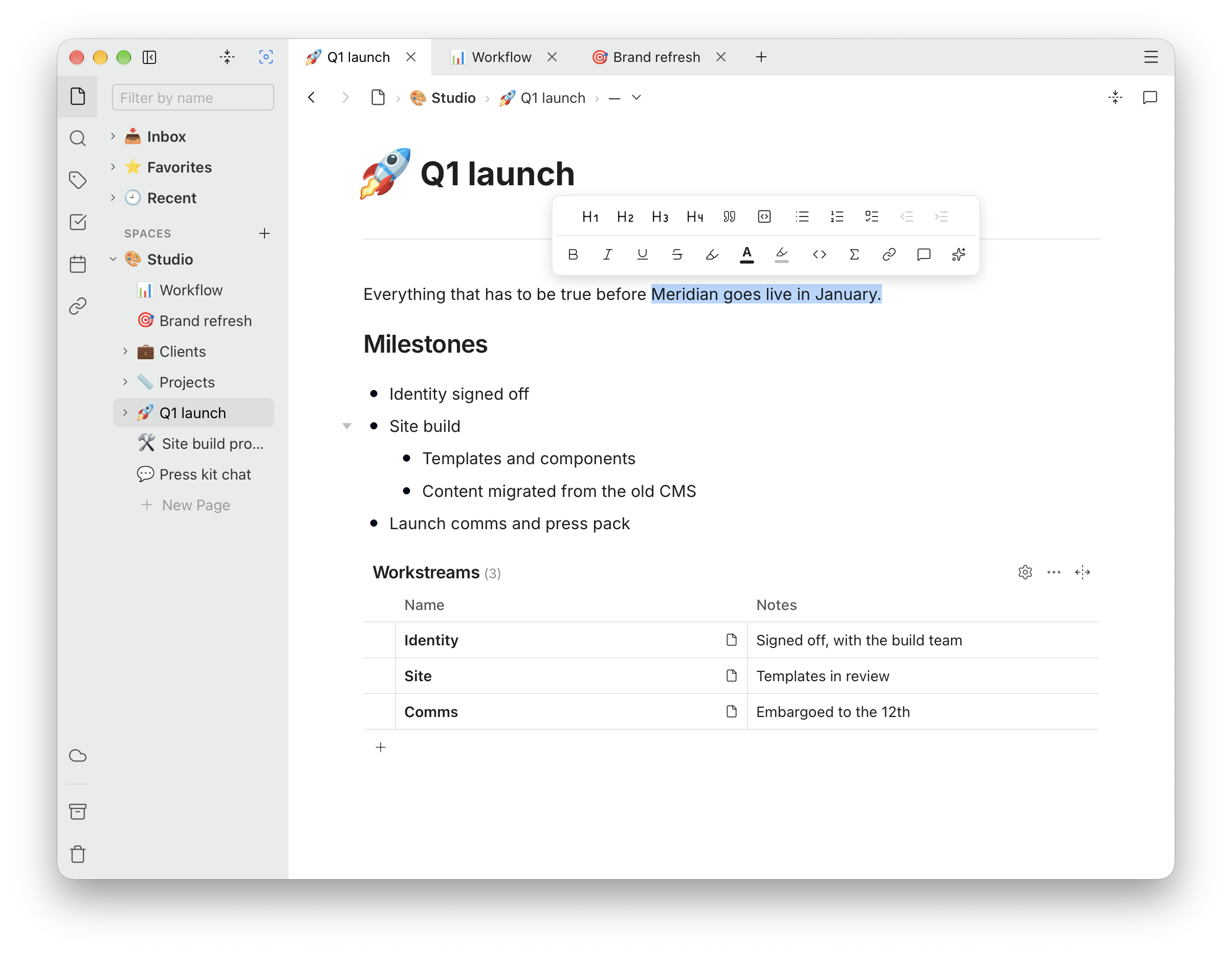
The same toolbar has Add comment. Comments collect in a panel beside the page; ⌘Enter or Ctrl+Enter posts one.
Links, tags and dates
- @ links to another page, or puts a date in: Today, Tomorrow, Yesterday, Next week, Next month or Now. Dates show up in the Calendar panel on their day.
- # starts a tag. The Tags panel lists every tag and where it is used.
- A to-do item from any page shows up in the Tasks panel, so a checklist can live where the work is and still be found in one place.
Backlinks
The Backlinks panel, the link icon in the rail, lists every page that links to the page you are on, each with the sentence its link is in. Both kinds of link count: a page linked with @, and text you linked to a page with Link and then Page on the toolbar that appears over a selection.
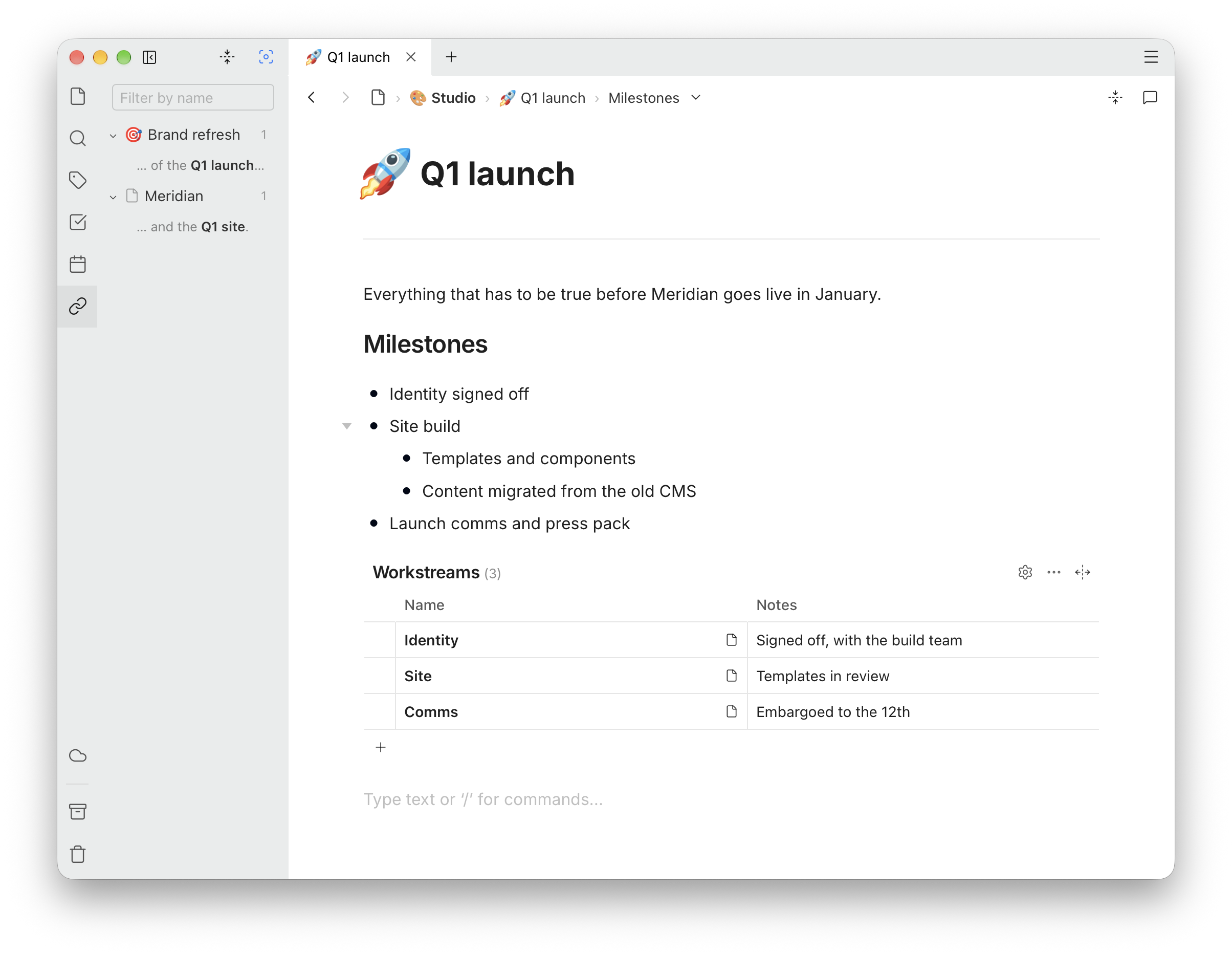
Click a sentence to open its page at the link. Pages in a hidden Space, and archived or trashed ones, are not listed, as in the other panels (Spaces).
Tables count too. A page linked in a table's cell is listed by its table and row, as Projects › Website redesign, and so is a relation to a row that has a page of its own: a client's page lists every project that points at it. A relation to a row without a page is not listed, since there is no page for it to be a backlink of; it shows in the table itself.
Unlinked mentions
Below the links, open Unlinked mentions to find the places where a page names this one without linking to it, each with the sentence it is in. Click Link beside one to turn those words into a link to this page; it moves up among the links.
A title of several words is found in any case: Q1 launch finds “q1 launch” too. A one-word title is found only as it is written, so a page called Notes does not turn up in every sentence that says “notes”. Like the links, mentions come only from the Spaces you have shown with Focus, so a hidden Space's text never appears here, on a shared screen or anywhere else.
Tables, diagrams and media
A simple table — Table in the slash menu — has its settings in its block menu: click the handle beside it and choose Table settings. There you turn the header row and header column on or off, set the number of rows and columns, choose a column to Expand into the spare width while the others keep to their content, and give columns a fixed width: XS, SM, MD or LG, the sizes database columns use. A two-column table expands its second column unless you choose otherwise.
The bigger blocks have pages of their own: Databases for tables of typed columns, Diagrams and charts for draw.io, Mermaid and Chart.js, and Images and media for pictures, files, video and link previews.
Copy and paste
Pasting keeps structure. Markdown becomes blocks, a page copied from Notion or a web page arrives with its headings and lists, and a selection copied out of Ubimate lands in Word or an email still formatted.
Images in what you paste from a web page, such as a ChatGPT answer, come along. The desktop app downloads them into the Space, so the page keeps them offline and if the site removes them; the web app shows them from where they are.
For Markdown itself, right-click in the page. Copy as Markdown copies the selection as Markdown source — or the whole page, as Copy page as Markdown, when nothing is selected. Paste as Markdown takes text from the clipboard and turns it into blocks, for Markdown that would otherwise arrive as plain text.
Templates
🧩 Templates is a Space of ready-made pages: Meeting Notes, Daily Note, Weekly Review, Project Brief, To-do List, Decision Record, Book Notes, Trip Plan, Budget — a table of expenses with their total —, Balance — money in and out by month, income positive and expenses negative — and Reading List, in its Built-in folder; the rest of the Space is for your own. It starts hidden; tick it in Focus to see it in the sidebar.
To start a page from a template, click the + beside a Space, a folder or a page, choose Add Page, and pick one in the Template field, where your own templates come first, under Yours, and the ones that come with Ubimate under Built-in. The page is named after the template unless you type a name, and gets a copy of its content, to-dos and all. The template itself does not change.
Your own templates follow Focus: while Templates is hidden, the Template field offers the built-in ones only, and says your own are hidden, without naming them. Tick Templates to use them.
The templates that come with Ubimate are read-only, and each new version of the app keeps them up to date. To make one your own, choose Duplicate to customize from its … menu, or the button under its title: the copy is an ordinary page that you can change, rename or delete. Any page you put in Templates is a template too, and shows in the Template field.
A template’s to-dos, dates and tags stay out of the Tasks, Calendar and Tags panels and out of search, even while Templates is shown. A page made from it has its own, which do show.