draw.io diagrams
For diagrams you draw: flowcharts, architecture, floor plans, anything with
boxes and arrows. Type /Diagram to add one.
To draw, hover over the block and click the pencil, Edit diagram. The full draw.io editor opens in a tab of its own, called Diagram. There is no Save button because there is nothing to remember: every change is written back into your page as you make it, and closing the tab keeps the last one.
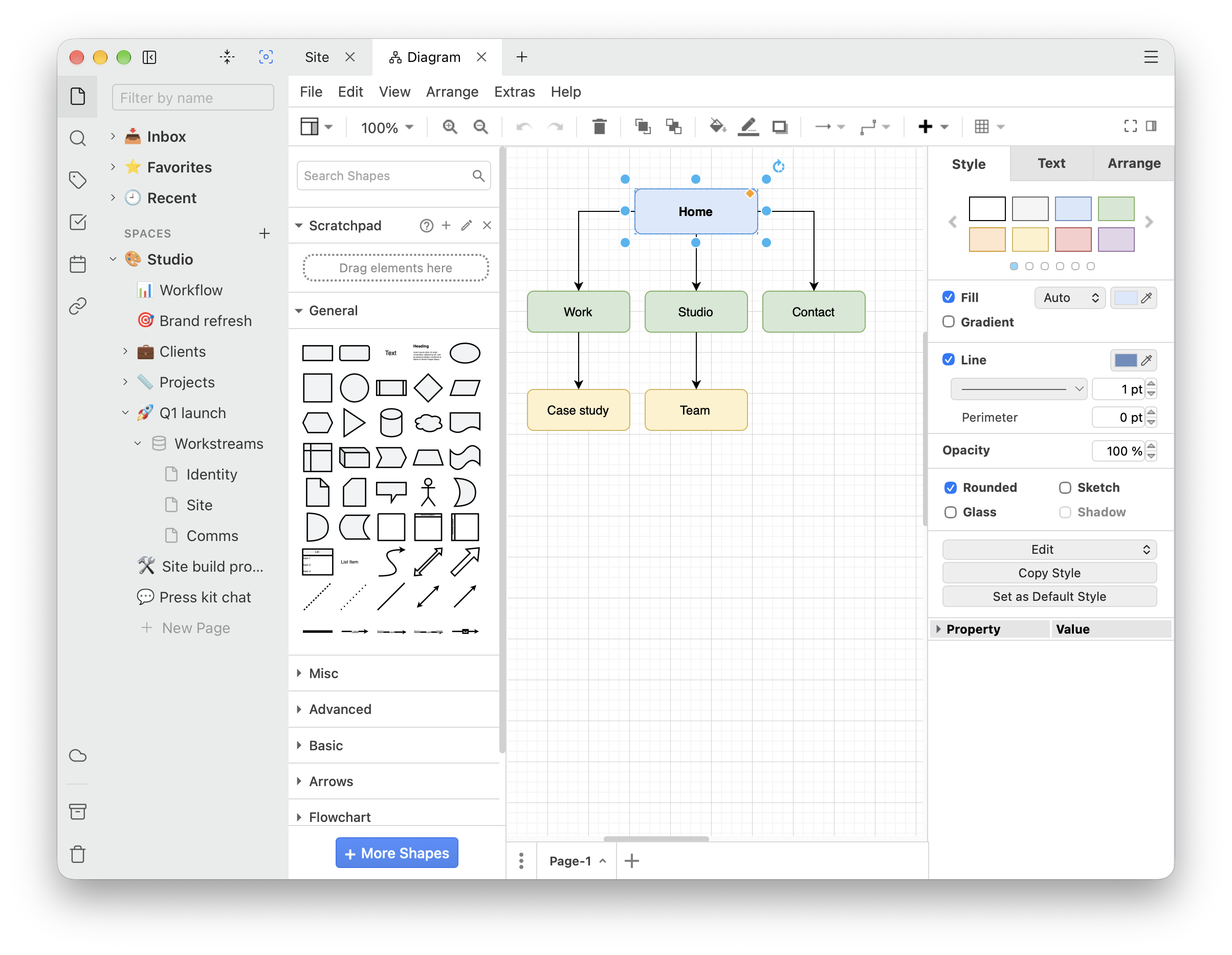
In the page, the diagram is a picture that fits the width of the text, or of the whole page with Expand to full width. It belongs to the page, so it moves, copies and gets deleted along with it.
The editor matches the app's light or dark theme as it opens. The diagram itself keeps the colors you drew it in.
Mermaid
For diagrams you would rather write than draw. Pick Mermaid diagram from the slash menu, or
start a code block with ```mermaid, and describe the diagram
in Mermaid's text syntax:
flowchart LR
Idea --> Draft --> Review
Review -->|changes| Draft
Review -->|approved| PublishSwitch between the text and the drawing with the eye button, Preview diagram, and the pencil, Edit code. Flowcharts, sequence diagrams, Gantt charts, class, state and entity-relationship diagrams, mind maps, timelines and pie charts all work; Mermaid syntax reference on the toolbar opens Mermaid's own documentation.
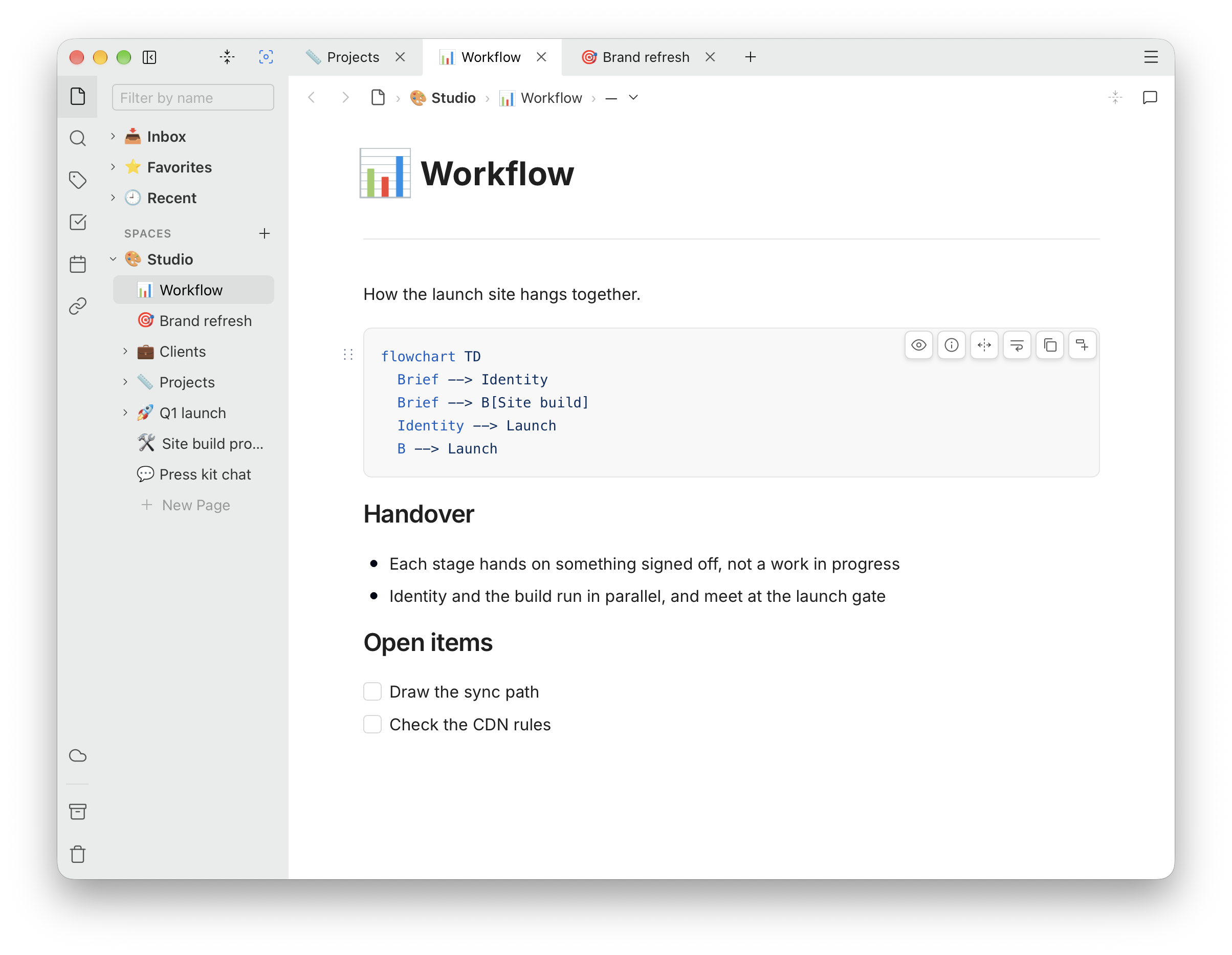
A mistake in the text shows Mermaid's error message, in red, where the diagram would be. The drawing follows the app's theme, light or dark.
Paste a Mermaid code block from somewhere else — a Markdown file, an answer from a chat assistant — and it turns into a diagram by itself.
Chart.js
For charts: bar, line, pie, doughnut, scatter and the rest of what
Chart.js draws. Pick Chart.js from the slash menu, or start a
code block with ```chartjs, and write the chart's
configuration:
{
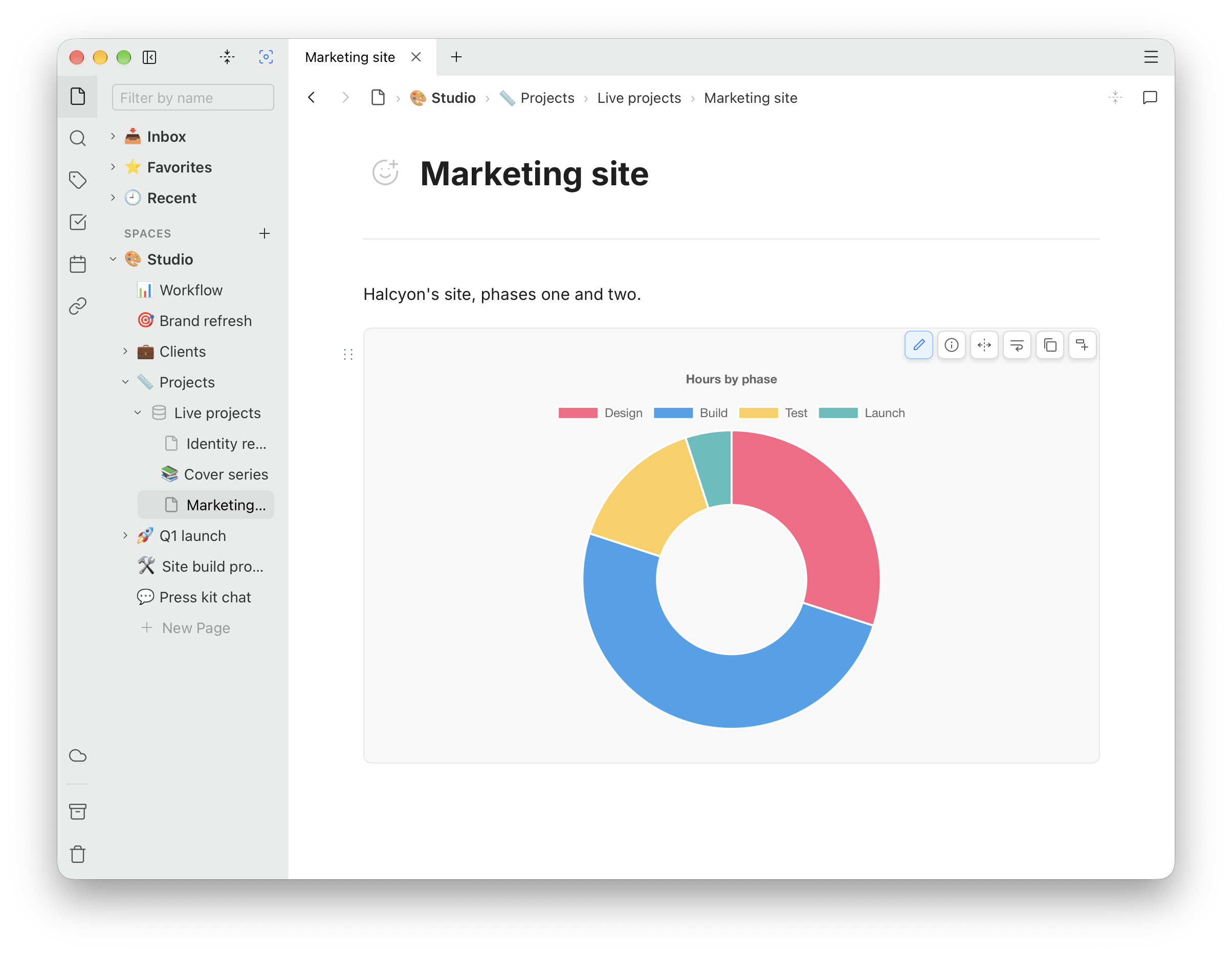
  "type": "doughnut",
  "data": {
    "labels": ["Design", "Build", "Test", "Launch"],
    "datasets": [{
      "label": "Hours",
      "data": [30, 50, 15, 5],
      "backgroundColor": [
        "rgb(255, 99, 132)",
        "rgb(54, 162, 235)",
        "rgb(255, 205, 86)",
        "rgb(75, 192, 192)"
      ]
    }]
  },
  "options": {
    "plugins": {
      "title": { "display": true, "text": "Hours by phase" }
    }
  }
}
JSON like this works, and so does JavaScript's
const config = { … }, without quotes round the names.
Switch views with Preview chart and Edit JSON.
The samples in the Chart.js documentation do not paste as they are, because they are split into tabs and run code to make their data. We wrote our own instead: an example of every kind of chart, ready to paste into a block, and the steps for bringing a sample from the Chart.js website across.
See how to write each kind of chart
The configuration is read, never run. Anything that needs code to work — a callback that formats a label, a value computed from others — is left out of the chart, so write values out in full.
Charts take the full width of the text and are 360 pixels tall, and their text and grid colors follow the app's theme.
The block toolbar
Hover over a diagram or chart and a toolbar appears at its top right.
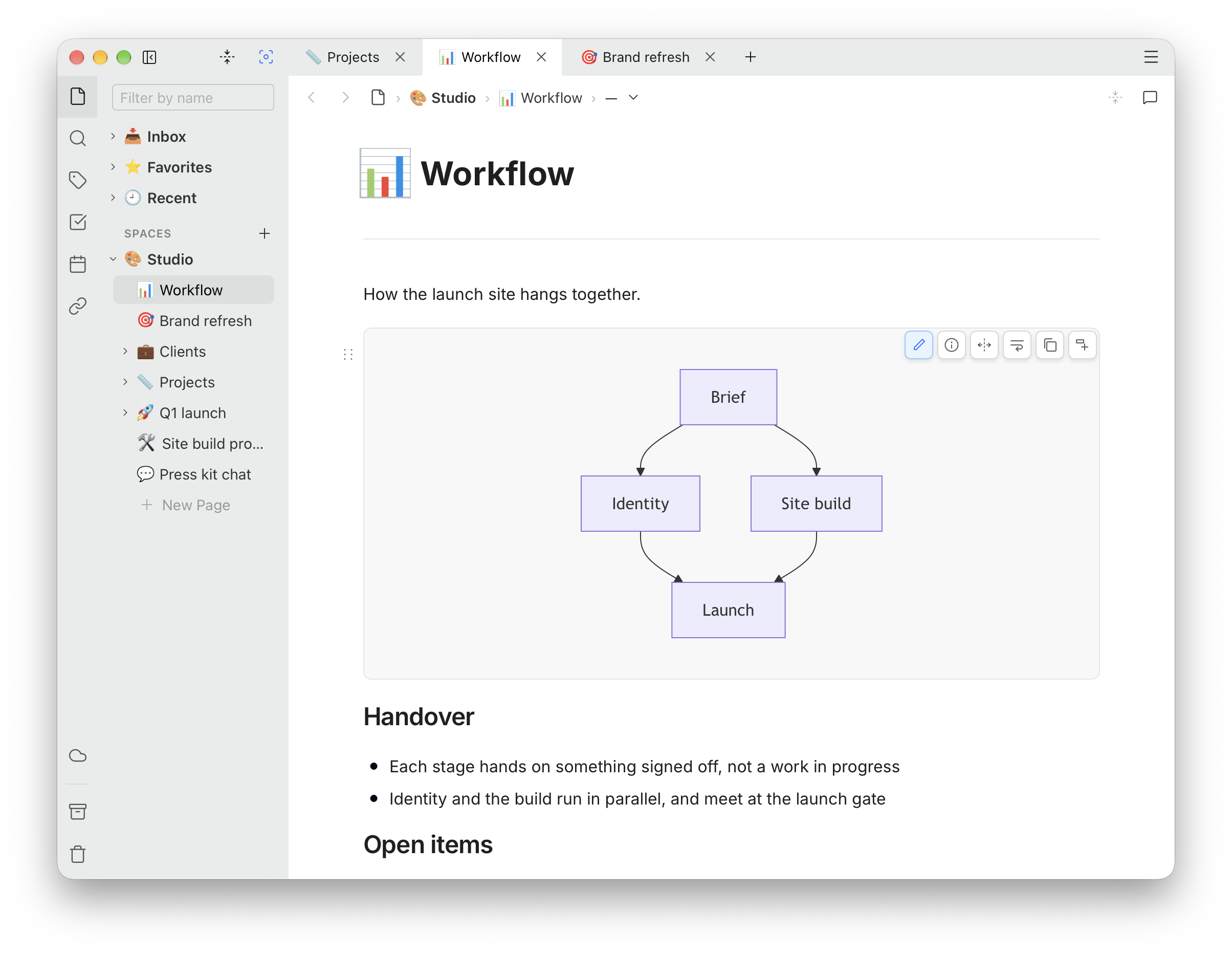
- Expand to full width / Collapse to normal width
- The switch between drawing and text, for Mermaid and Chart.js
- A link to the documentation of draw.io, Mermaid or Chart.js
- For Mermaid and Chart.js, Copy code, line wrap, and Select language to turn the block into another kind of code
Outside the app
Diagrams travel with their page when you copy it, export it or sync it. In the HTML copy and in exports, though, they appear as their source — the Mermaid text, the chart configuration, the draw.io file — rather than as pictures, so they stay editable everywhere and drawn only in Ubimate. There is no export as an image yet; a screenshot is the way to get one.