What it needs
- The desktop app, on a Mac with macOS 26 or later
- A Mac that supports Apple Intelligence — one with Apple silicon
- Apple Intelligence turned on in System Settings, and its on-device model downloaded
Ubimate uses Apple's own on-device model. There is nothing extra to install and no account to sign in to.
If something is missing, Settings says what, under Use Local AI:
| Settings says | What to do |
|---|---|
| “Needs a Mac with macOS 26 or later.” | Update macOS, if your Mac can take macOS 26. On Windows, Local AI is not available. |
| “This Mac does not support Apple Intelligence.” | Nothing, on this Mac: Apple Intelligence needs Apple silicon. |
| “Turn on Apple Intelligence in System Settings to use it.” | Turn it on in System Settings → Apple Intelligence & Siri. |
| “The on-device model is still downloading. Try again in a little while.” | Wait for macOS to finish the download. |
The app checks again whenever you come back to its window, so there is no need to restart it once Apple Intelligence is ready.
Working on a selection
Select some text and click ✨ in the toolbar that appears over it. The Local AI panel offers:
- Improve writing
- Fix spelling & grammar
- Make shorter and Make longer
- More formal and More friendly
- Summarize
Or type your own instruction in Or tell Local AI what to do… and press Enter.
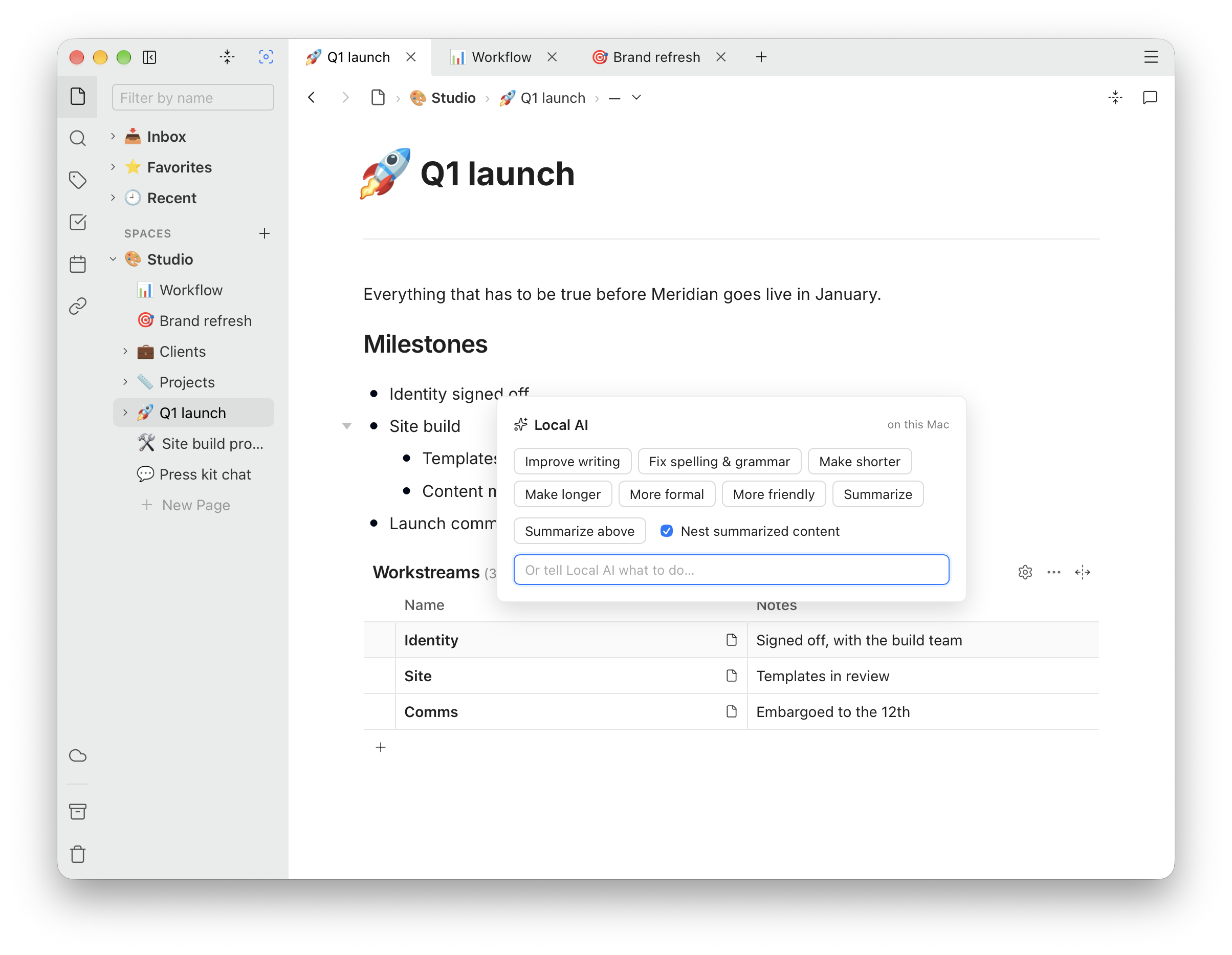
Nothing in your page changes until you choose. When the answer is ready, pick Replace to put it in place of the selection, Insert below to keep both, Try again for another attempt, or Discard. Stop cancels while it is still thinking, and Esc closes the panel.
Links, bold, dates and other inline items in the selection are kept, though the model may occasionally drop some formatting — check the result before you replace.
Summarize above
Summarize above, at the bottom of the same panel, skips the review: it puts a 🤖 callout with the summary straight above the selection. With Nest summarized content ticked, the text you summarized is indented under it, so you can fold it away and keep only the summary in view.
Undo removes it, if it is not what you wanted.
Ask Local AI
To draft something new, type /ai on an empty line and pick
Ask Local AI. Describe what you want — “a packing list
for a weekend hike” — and press Write.
The answer appears in the panel exactly as it will look in your page, with headings, lists and checklists as real blocks. Not right yet? Ask for changes in the box below it, as many times as you like; each answer is the whole updated text. When it is right, press Insert.
Shift+Enter starts a new line in the prompt. Esc or Discard throws the conversation away.
Limits
The model that runs on your Mac is small, which is what lets it run there. In practice:
- About 3,500 characters at a time for rewriting and for prompts — a page or so. With a longer selection the panel says so, and only the summary actions stay available.
- Summaries handle longer text by reading it in parts. Very long passages can still be too much, and the panel will say “The text is too long to summarize on this device.”
- It sometimes declines. “The on-device model declined to work on this text” comes from Apple's own safety checks, not from Ubimate.
- It answers in the language you write in, as far as Apple's model supports that language.
- It is in the desktop app only. It is not available in the pages of a datatable row, or on the web.
Privacy and turning it off
Your text is processed on your Mac by Apple's on-device model, and only when you pick an action. Ubimate never sends it to an external AI service — there is no Ubimate AI server for it to go to. The whitepaper has the detail.
Local AI is on by default where your Mac can run it. To turn it off, open Settings and switch off Use Local AI: the ✨ button, both panels and Ask Local AI disappear at once.
Either way, macOS's own Writing Tools and Siri pop-ups are kept out of the editor on macOS 26, so the only AI in your pages is the one you ask for here.