Adding images and files
- From the slash menu: Image, File attachment, Audio or Video opens a file picker.
- By dragging images, audio or video from Finder or File Explorer into the page. Several images can go at once.
- By pasting an image — a screenshot, or a picture copied from another app.
Images can be JPEG, PNG, GIF, WebP or SVG. Any kind of file goes in a File attachment; a PDF or a zip has to be added that way, since dropping one onto the page does nothing.
The file is copied into your workspace, so the page keeps working if the original is moved or deleted.
Images
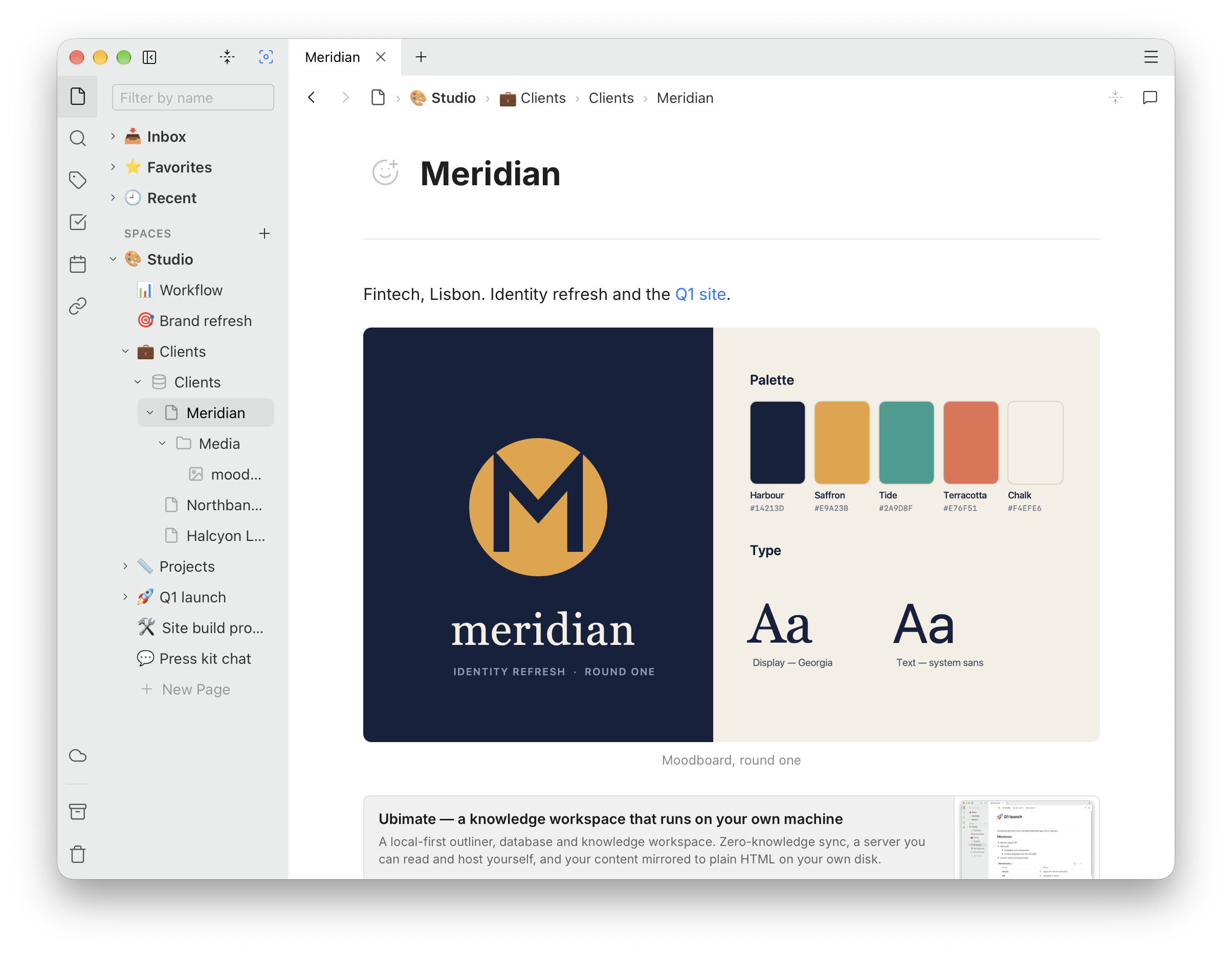
Type under an image to give it a caption, in Add a caption…. Hover over it for Expand to full width.
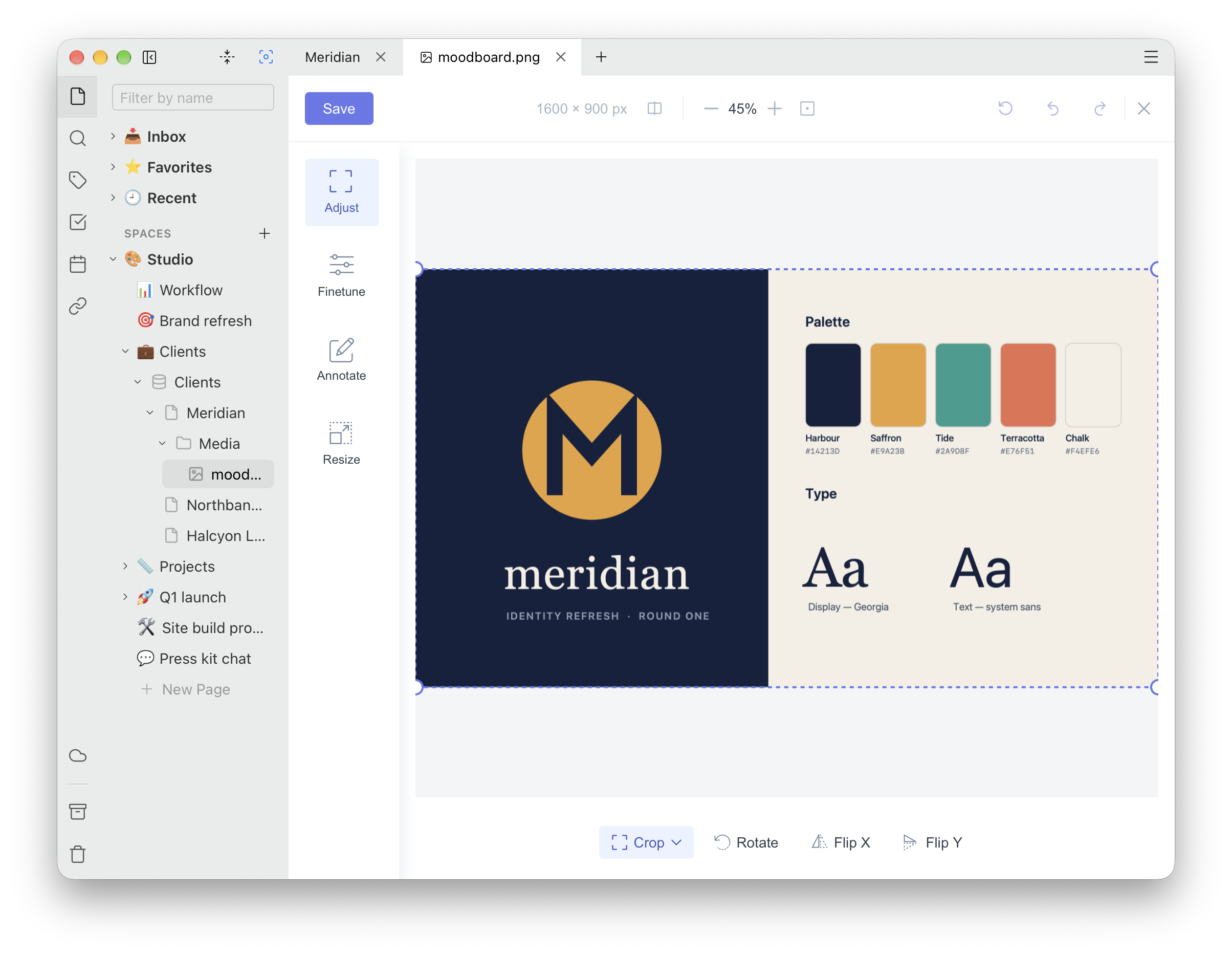
Double-click an image to edit it. It opens in an image editor in a new tab, with Adjust (crop and rotate), Finetune (brightness, contrast and the like), Annotate (arrows, shapes and text) and Resize. Saving updates the image everywhere it is used.
Paste a web address that ends in .jpg, .png or
another image type onto an empty line and you get that picture shown from
the web. It is not copied into your workspace, so it needs a connection
to appear and cannot be edited.
Files, audio and video
A file attachment shows its name, type and size. Click it and it opens in the app your computer uses for that kind of file.
Audio and video play in the page, with the usual controls and a caption underneath. Audio can be MP3, AAC, FLAC, WAV or Ogg; video can be MP4, WebM or Ogg.
Using a file again
To put an image or file that is already in this Space on another page, without a second copy, use the link items in the slash menu: Image link, Video link, Audio link or Attachment link. Each lists what the Space already holds; pick one and it is embedded.
YouTube and other players
Paste a link from YouTube, Vimeo, Loom, Streamable, Dailymotion, Wistia or SoundCloud onto an empty line, and it becomes a player. The slash menu has an item for each as well.
Players stream from those services, so they need a connection. To keep tracking down, YouTube videos play from YouTube's no-cookie domain and Vimeo is asked not to track.
Hover over a player for Open link and Edit URL.
Link previews
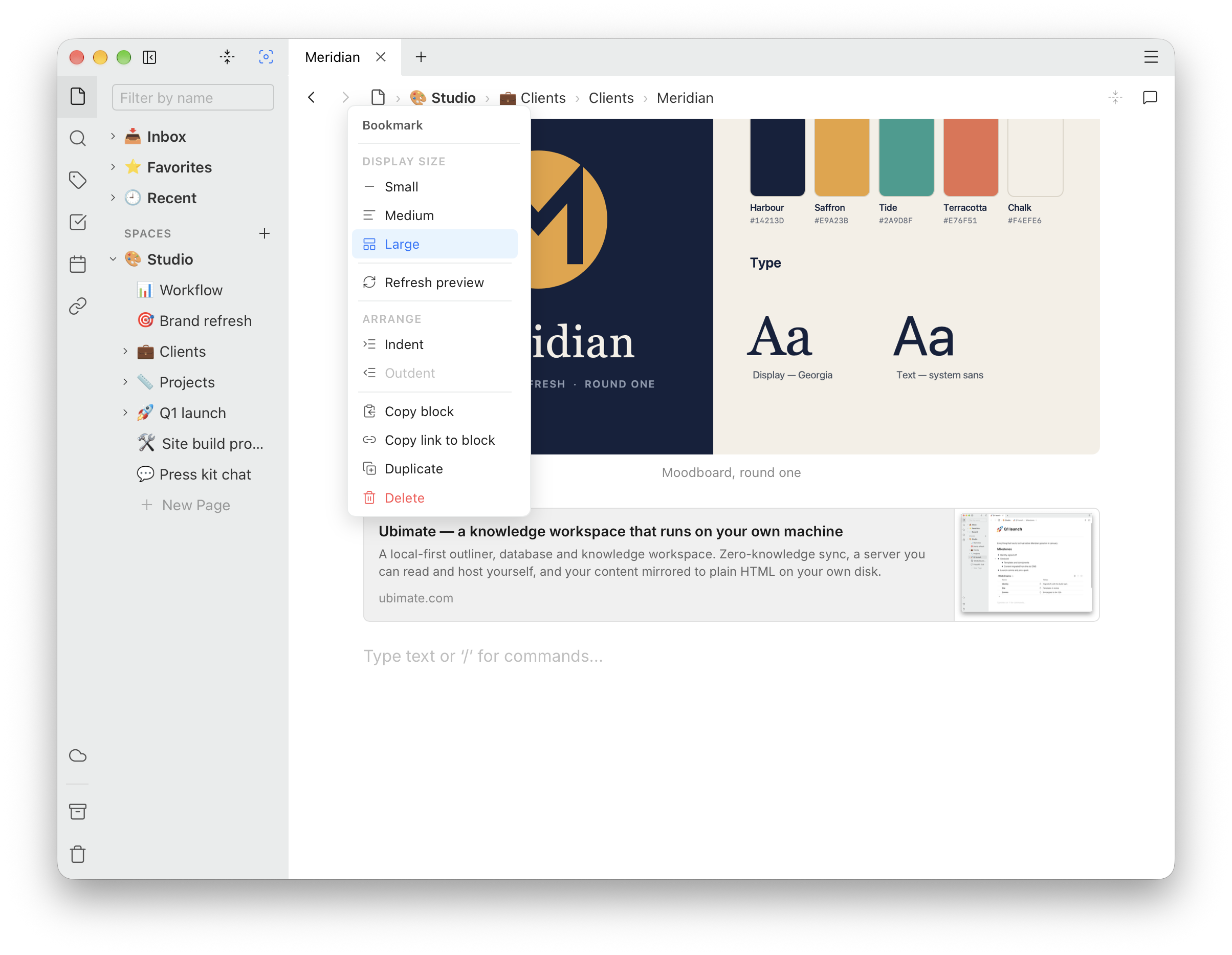
Paste any other web address onto an empty line, or use Bookmark from the slash menu, and you get a card with the page's title, description, icon and picture.
The desktop app fetches the preview itself, so the address never passes through our servers — the site you link to sees your connection rather than ours. Without a connection, the card shows the address alone.
The block's menu has Display size — Small, Medium or Large, which adds the picture — and Refresh preview. The size you pick last becomes the default for the next one.
Media in the page tree
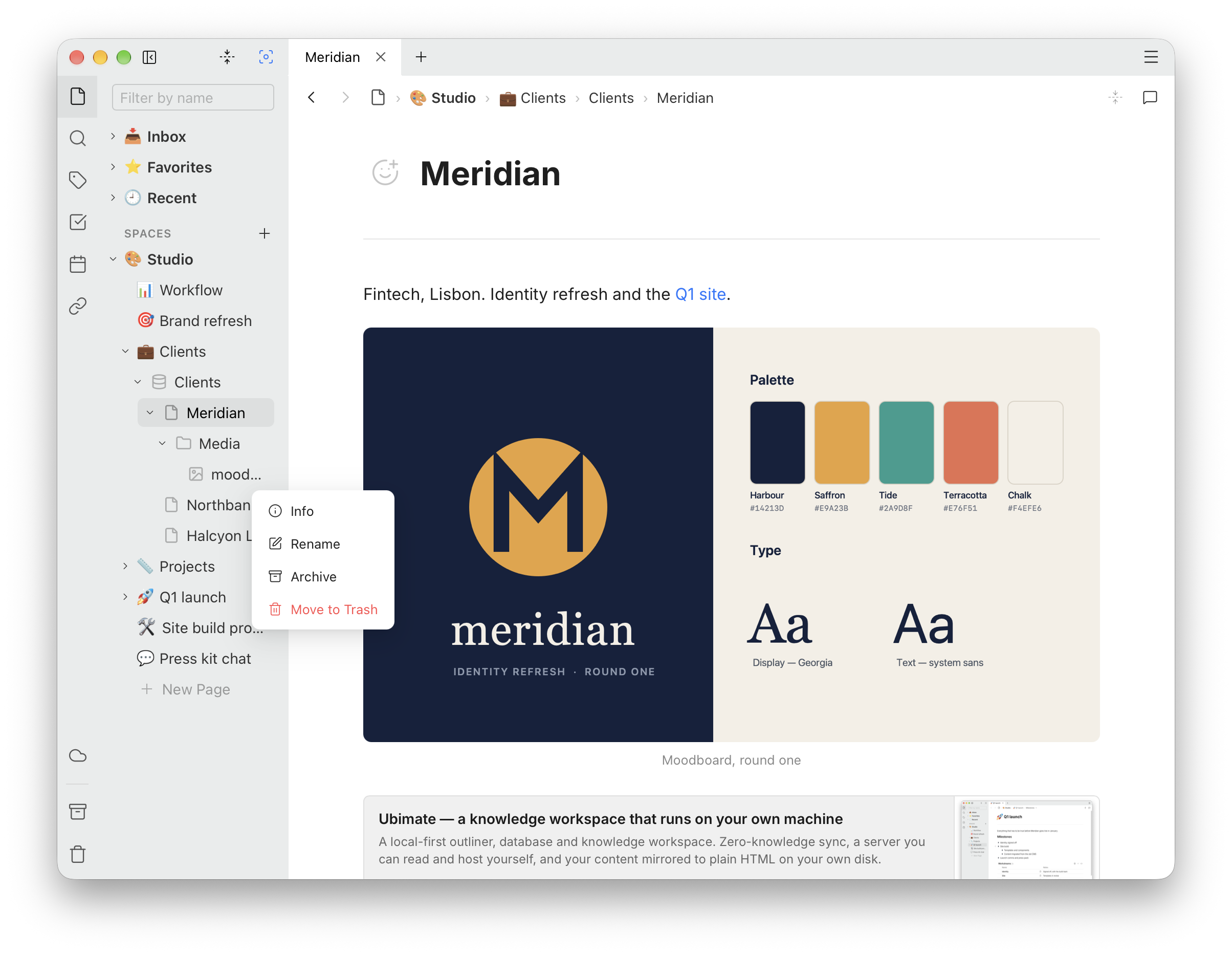
Everything you add to a page is also listed in a Media folder under it in the sidebar. Click an image there to open it in the image editor, or a file to open it in its app.
The … menu on each has Info (name, type and size), Rename, Archive and Move to Trash. Archiving or trashing a file takes it out of the tree and the link items, but not out of pages that already show it.
Your files live in the app's data folder, and the HTML copy keeps a plain copy of each one beside your pages. Your data has the details.