The window
Down the left edge is a rail of panels. Click one to open it in the sidebar; with the sidebar closed, hovering a button shows that panel over the editor.
- Pages — your Spaces and everything in them.
- Search — full-text search across your pages.
- Tags — every
#tagyou have used, grouped by where it appears. - Tasks — to-do items from all your pages in one list. The To-Do and Done boxes show open items, done ones, or both.
- Calendar — every date you have put in a page, grouped by day.
- Backlinks — the pages that link to the page you are on (Writing).
- Archive and Trash — pages you have put away, and pages you are about to delete.
Pages open in tabs across the top. ⌘-click a page on a Mac, or Ctrl-click on Windows, to open it in a new tab, and right-click a tab for Close Others, Close to the Right and Close All. Each tab keeps its own back and forward history.
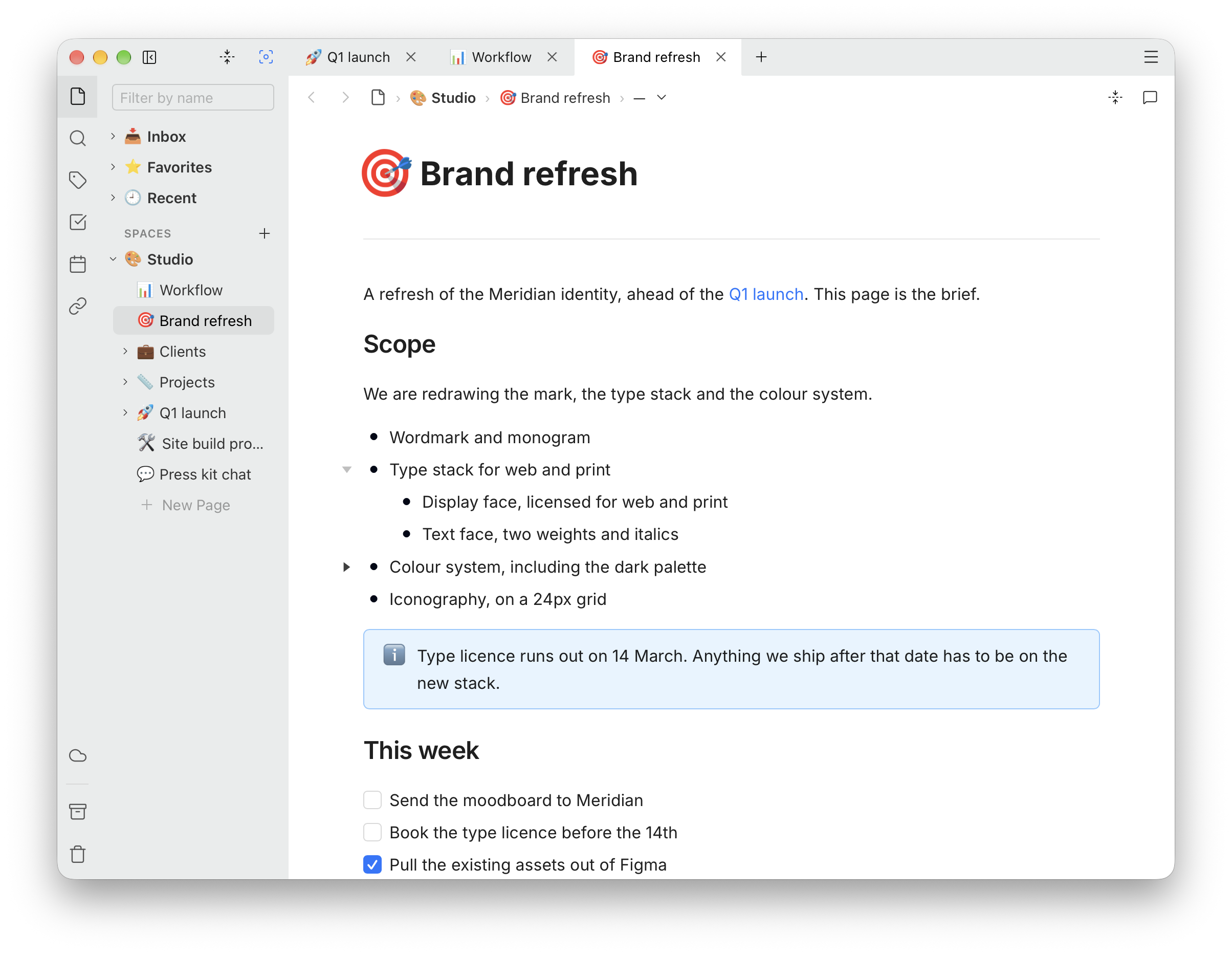
The app menu, at the top of the sidebar, has New Quick Note, New Space…, Search, import and export, Help and Settings.
Spaces
A Space is a top-level container for related pages — one for work, one for a project, one for home. Make one with the + on the Spaces caption in the sidebar, or New Space… in the app menu (on a Mac, also in the File menu), give it a name and an icon, and click Create.
A new installation of the desktop or mobile app starts with a 🏠 Home Space holding two pages, Welcome and Overview. It is a Space like any other: rename it, add to it, or delete the pages when you no longer need them.
Four entries head the list, above the Spaces caption:
- 📥 Inbox — where quick notes land.
- 🕘 Recent — what you opened last.
- ⭐ Favorites — pages you have starred with Add to Favorites.
- 🧩 Templates — pages to start new ones from (Templates). It starts hidden: tick it in Focus to show it.
When the list gets long, the Focus menu at the top of the sidebar lets you pick which Spaces are active. Hidden Spaces leave the sidebar and search results until you bring them back; nothing in them is touched. There is more on this, and on keeping a screen share clean, in Spaces.
Pages and folders
The + next to a Space offers Add Page and
Add Folder, and every Space ends with a + New Page row.
To make a page inside the one you are writing, type /Page in
it.
Drag a page to reorder it, to nest it under another, or to move it to another Space. The … menu on a page has Rename, Add to Favorites, Archive and Move to Trash. The field at the top of the tree filters it by name.
What goes in a page is in Writing, and how to arrange it in Outlining and folding.
Quick notes
For a thought that does not yet have a place: press ⌘N on a Mac or Ctrl+N on Windows, or choose New Quick Note from the app menu. You get a fresh page, titled with the date and time, in your Inbox, ready to type in.
Move it into a Space when you know where it belongs. The Inbox's … menu has Archive all notes and Trash empty notes for clearing it out.
Finding things
Press ⌘K or Ctrl+K and start typing. Search covers page titles and their full text, including the cells of your databases, and runs entirely on your machine. Opening a result takes you to the page with the words you searched for highlighted.
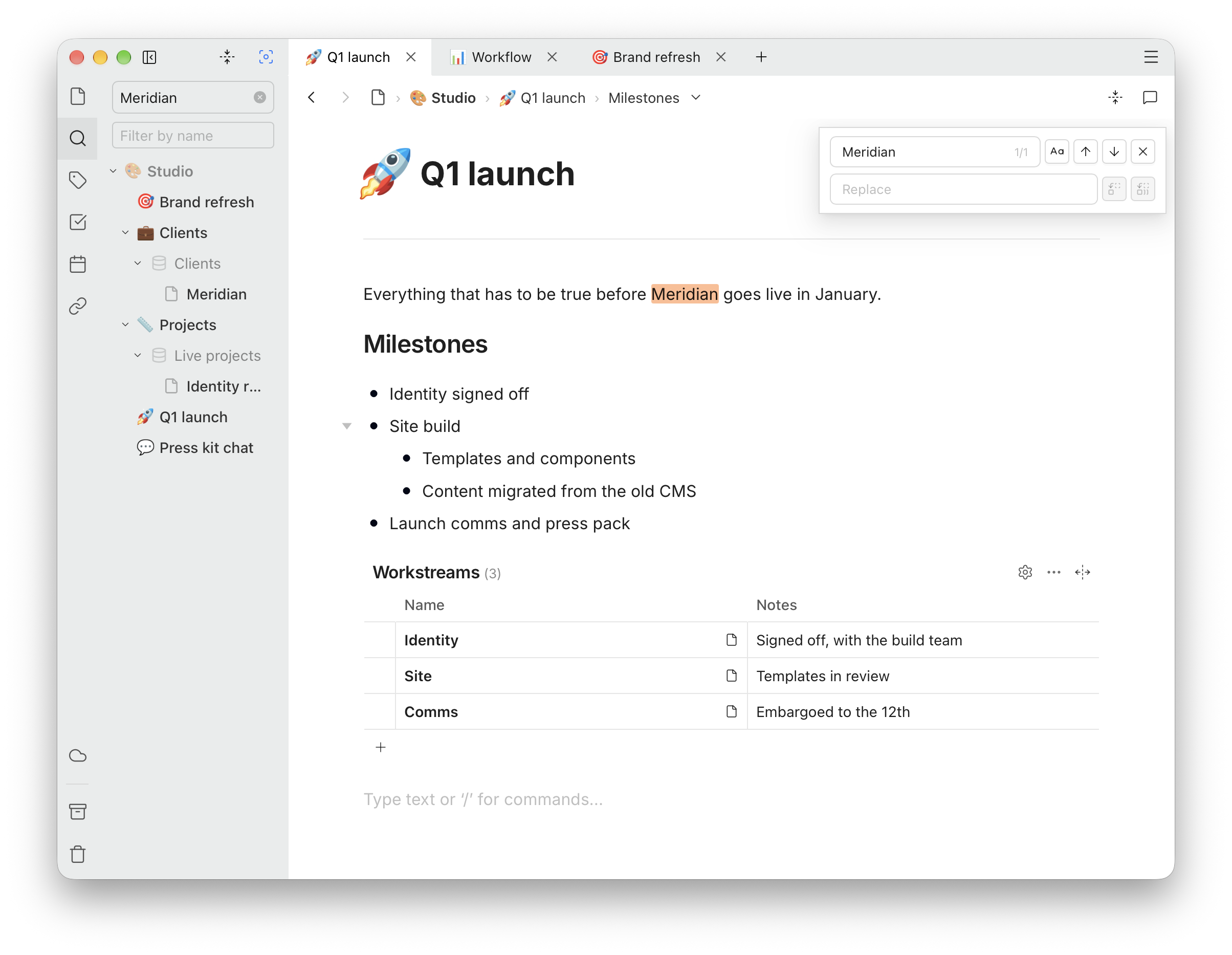
Inside a single page, ⌘F or Ctrl+F opens find and replace.
Archive and Trash
Archive puts a page out of the way without deleting it: it leaves the tree and search results, and Unarchive in the Archive panel brings it back.
Move to Trash is the step before deleting. From the Trash panel you can Restore to Pages or Delete permanently, and Empty Trash deletes everything in it. Deleting permanently cannot be undone.
Settings
Open Settings from the app menu, or with ⌘, on a Mac.
- Theme — Light, Dark, or System to follow your computer.
- Editor font size — Small, Medium or Large.
- Keep an HTML copy of my content — writes your pages as HTML files you can open without the app. On by default; see Your data.
- Use Local AI — on-device writing help, on a Mac with macOS 26 or later and Apple Intelligence. See Local AI.
- Sync — shows or hides signing in to a sync server. Off, the app has no sign-in button at all.