Where it lives
Your workspace is one SQLite database, ubimate.db, with your
images and files in an uploads folder beside it:
| System | Folder |
|---|---|
| macOS | ~/Library/Application Support/app.ubimate/ |
| Windows | %APPDATA%\app.ubimate\ |
It is not encrypted, on purpose. Encryption needs a key, and a key can be lost — a forgotten passphrase is enough — taking everything you wrote with it. With no key to lose, nothing can ever lock you out of your own content. The protection is your operating system's instead, so turn on FileVault or BitLocker on a machine that travels. The security page explains the trade-off.
The HTML copy
The desktop app also writes every page as an ordinary HTML file in
Ubimate inside your Documents folder. Any
browser opens them, your computer's own search finds them, and they stay
readable without the app.
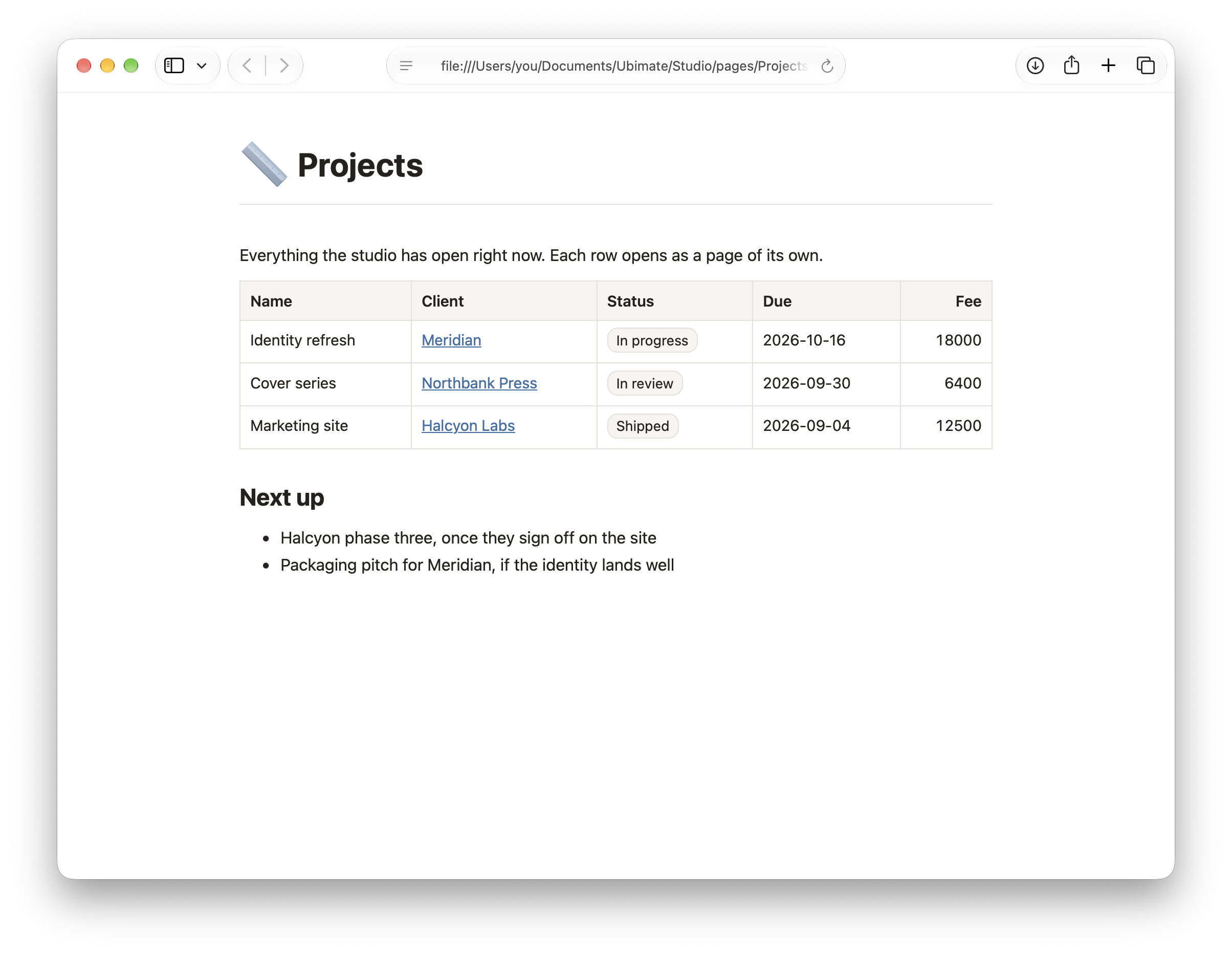
It is on by default. Turn it off in Settings with Keep an HTML copy of my content. On a Mac, the app tells you before it first writes to Documents, and macOS may ask you to allow it.
The copy is for reading. Edits made to those files are not read back into Ubimate.
Backing up
Back up the data folder above the way you back up anything else: Time Machine on a Mac, File History or your backup software on Windows. Quit Ubimate first if you copy it by hand, so the database is not caught mid-write.
Sync is not a backup. It copies your changes to your other devices — including deletions — so keep a backup of your own as well.
Exporting a Space
Choose Export Space… from the app menu (on a Mac, also in the File menu), then the Space and the format. You get a zip, saved where you choose.
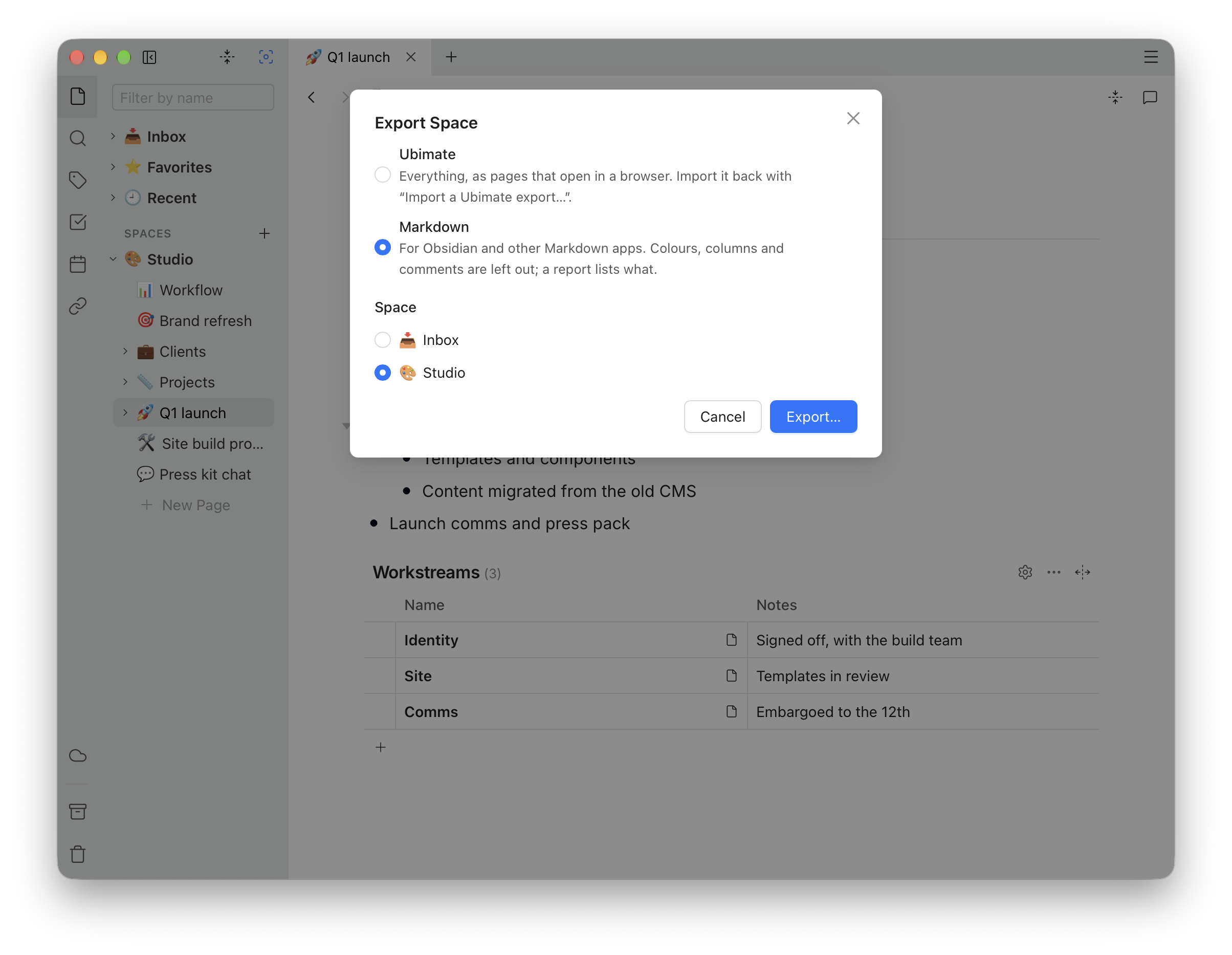
- Ubimate keeps everything, as HTML pages that open in a browser, and Import a Ubimate export… brings it back.
-
Markdown is for Obsidian and other Markdown apps: a
.mdfile per page, in the Space's folders, with links between pages, tags and callouts as Obsidian writes them, and each database as a table and as a CSV file beside its page. Colours, columns and comments are left out, andEXPORT-REPORT.mdin the zip lists what, page by page.
A database can be taken out on its own: its … menu has Copy CSV and Download CSV, for a spreadsheet.
And a single page can go anywhere that reads Markdown: right-click in it and choose Copy page as Markdown.
Importing
From Markdown or Obsidian
Import Markdown… in the app menu makes a new Space of a zip of
Markdown notes: an Obsidian vault, any folder of .md files, or a
Space exported as Markdown.
It takes a zip, so zip the folder first. On a Mac, right-click it in Finder and choose Compress. On Windows, right-click it and choose Compress to ZIP file, or Send to → Compressed (zipped) folder on Windows 10. On Linux, most file managers have Compress… in the same menu. Zip the vault’s own folder, not the notes inside it: the new Space is named after the folder.
- Each note becomes a page, in its folder; a folder becomes a folder in the sidebar.
- Wikilinks and links between notes become links between the pages, and embedded images and files come along.
- Callouts, highlights, tags, tasks, tables and code arrive as their blocks.
- Properties other than the title, icon and tags are left out, and an
embedded note (
![[note]]) becomes a link to it. - A single line break inside a paragraph stays a line break in an Obsidian vault, as Obsidian shows it, unless Strict line breaks is on. In any other zip the lines are joined, as standard Markdown reads them. The preview lets you choose the other way.
- Plugins’ syntax stays as written: a Dataview query is a code block that does not run, and a Canvas file comes in as an attachment.
Before it imports, the preview says what it will keep only as text, such as a link to a note that is not in the zip. Obsidian's own settings folder is left out, apart from its line-break setting.
From Notion
- In Notion, go to Settings → General and choose Export Workspace content.
- Pick HTML as the format and Everything as the page content, and turn on Create folders for subpages and Export comments.
- In Ubimate, choose Import from Notion… from the app menu and pick the zip Notion sent you.
Import soon after exporting. A Notion export can link to files that stay on Notion's servers, such as page covers and some images, rather than include them; the import downloads them, but only while Notion still serves them. The Notion import report page it creates names anything it could not download, so check it before you delete anything from Notion.
From a Ubimate export
Import a Ubimate export… brings a zip made by Export Space… back in as a new Space. It is a copy; the Space it came from is not touched. Every import is in the desktop app.